

If your email keeps landing in spam, the cause is often invisible: your domain is not properly authenticated. In 2026, Gmail, Yahoo, and Microsoft all require it. Here is how SPF, DKIM, DMARC, and BIMI work, in plain language, and the order to set them up.
What email authentication is, and why it matters
Email authentication is how a receiving mailbox confirms that a message really came from your domain and was not forged along the way. Without it, anyone can put your domain in the "From" address, and providers have no reliable way to tell a real message from a spoofed one.
That uncertainty has a cost. Unauthenticated mail is far more likely to be filtered to spam, throttled, or rejected outright. Since the bulk-sender requirements rolled out, the big mailbox providers treat missing authentication as a hard signal, not a nice-to-have. It is also one of the first things to rule out when you are diagnosing email deliverability problems, because a broken record quietly suppresses everything you send.
- It protects your domain from being used in phishing and spoofing.
- It tells mailbox providers your mail is legitimate, which lifts inbox placement.
- It is now required to send at any meaningful volume to Gmail, Yahoo, and Outlook.
SPF: say who is allowed to send for you
SPF (Sender Policy Framework) is a DNS record that lists the servers and services allowed to send email using your domain. When a message arrives, the receiver checks the sending server against your SPF record. If it is on the list, SPF passes.
The most common mistake is forgetting a service. If you send through an ESP, a CRM, and your help desk, all three need to be authorized in a single SPF record. SPF also has a hard limit of ten DNS lookups, which is easy to exceed once you add several providers. For the full syntax, every mechanism and qualifier, and worked records for common stacks, see our standalone SPF record reference.
DKIM: sign your mail so it cannot be forged
DKIM (DomainKeys Identified Mail) adds a cryptographic signature to every message using a private key. The matching public key lives in your DNS. The receiver verifies the signature, which proves two things: the message really came from your domain, and it was not altered in transit.
Where SPF authorizes the sending server, DKIM authorizes the message itself, and it survives forwarding. Most ESPs generate the keys for you; your job is to publish the public key they give you in DNS and keep it rotated. Our DKIM setup guide covers selectors, key lengths, and per-provider walkthroughs in depth. You can watch all three checks pass or fail on any real message: the Authentication-Results line shows the verdicts, and our guide on how to read email headers walks through exactly where to look.
DMARC: tie it together and take control
DMARC (Domain-based Message Authentication, Reporting and Conformance) sits on top of SPF and DKIM. It tells receivers what to do when a message fails authentication, and it asks them to send you reports about who is sending mail as your domain.
You set a policy of none (monitor only), quarantine (send failures to spam), or reject (block them). Start at none, read the reports until you are confident every legitimate source passes, then tighten to quarantine and finally reject. DMARC also requires alignment: the domain that passes SPF or DKIM has to match the visible From domain.
- Begin at p=none and collect reports for a few weeks.
- Fix any legitimate source that is failing alignment.
- Move to quarantine, then reject, once the data is clean.
BIMI: put your logo in the inbox
BIMI (Brand Indicators for Message Identification) lets your verified logo appear next to your messages in supporting inboxes. It only works once you are at DMARC enforcement (quarantine or reject), so it doubles as a reward for getting authentication right. For most providers you will also need a Verified Mark Certificate; the full setup, requirements, and costs are covered in our guide to the Gmail blue checkmark and BIMI.
A simple setup order
Authentication is far less daunting when you do it in sequence rather than all at once:
- Publish a single SPF record that includes every sending service.
- Enable DKIM signing on each platform and publish the public keys.
- Add a DMARC record at p=none and watch the reports.
- Tighten DMARC to quarantine, then reject, when the data is clean.
- Add BIMI to earn your logo in the inbox.
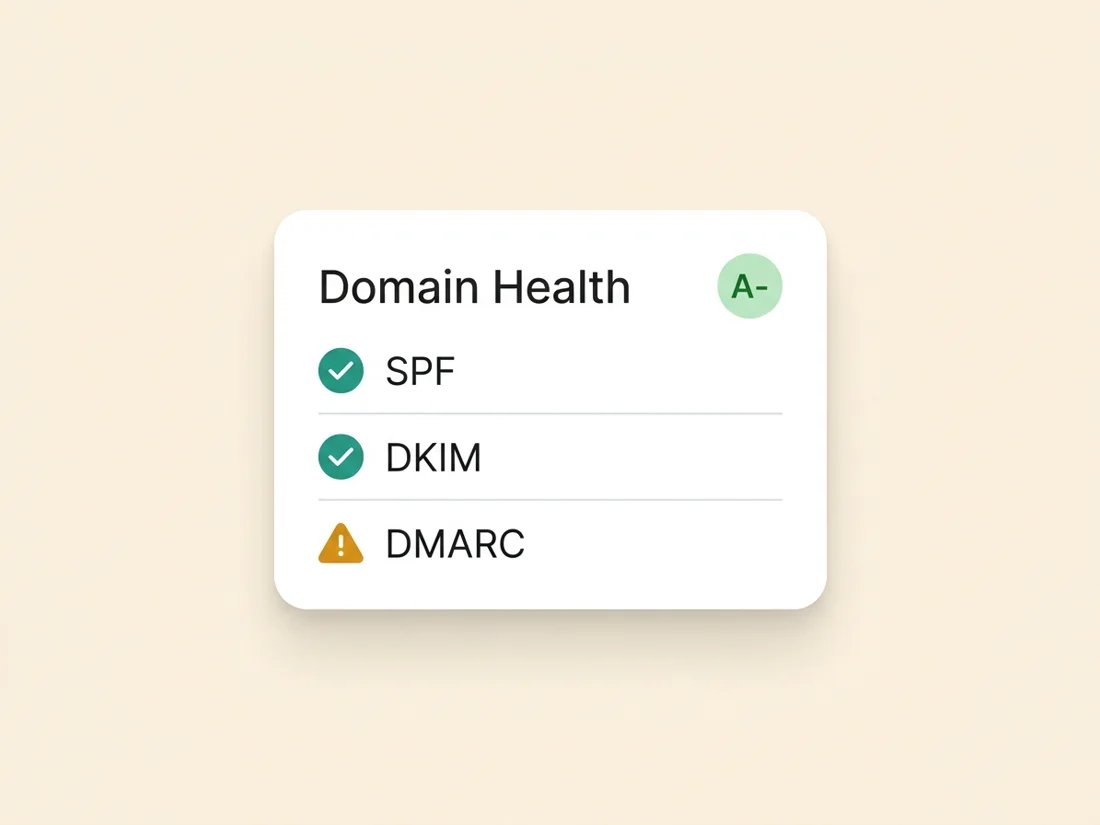
If you would rather not read raw DNS records and XML reports, SpamCipher's Domain Health and Compliance Monitoring do the checking, plain-language explanations, and ongoing alerts for you.
See where your domain stands
Run a free Domain Health scan and get a plain-language report of your SPF, DKIM, and DMARC setup.
Scan your domain free