How to connect a Gmail account
Connect a personal Gmail inbox to SpamCipher with an app password
Updated 10 October 2026
SpamCipher connects a personal Gmail account with an app password. An app password is a 16-character password that Google creates for one app, so you never share the password you sign in to Gmail with. Once connected, SpamCipher sends from the inbox and brings its replies into your Unibox.
Before you start
- A Gmail address that ends in @gmail.com
- Access to that Google account, to create the app password
- About 5 minutes
Create an app password in your Google account
Step 1: Turn on 2-Step Verification
This step happens outside SpamCipher.
- Sign in to your Google account at myaccount.google.com.
- Open Security and find 2-Step Verification.
- If it says Off, click it and follow Google's steps to turn it on.
Step 2: Create the app password
This step happens outside SpamCipher.
- Go to myaccount.google.com/apppasswords. You can also search for App passwords in your Google account.
- Type a name you will recognise, such as SpamCipher, and click Create.
- Copy the 16-character password Google shows you. You will paste it into SpamCipher in a moment.
Connect the account in SpamCipher
Step 3: Open Email Accounts
- In the left menu, point to the paper plane icon to open Outreach.
- Click Email Accounts.
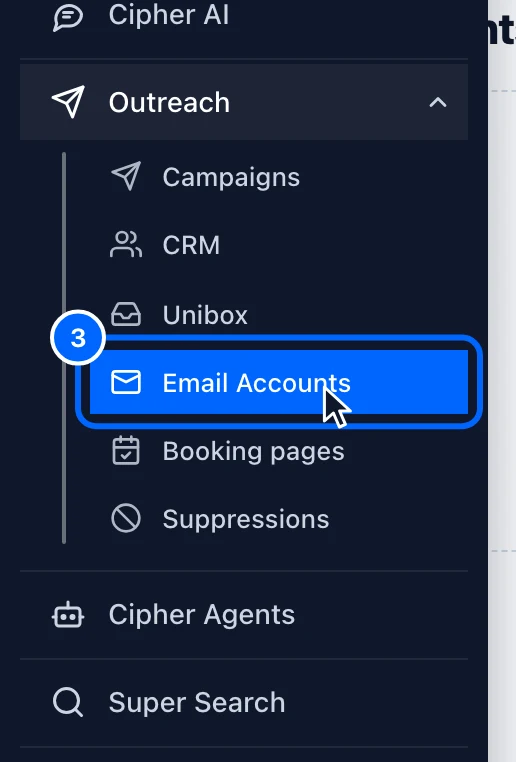
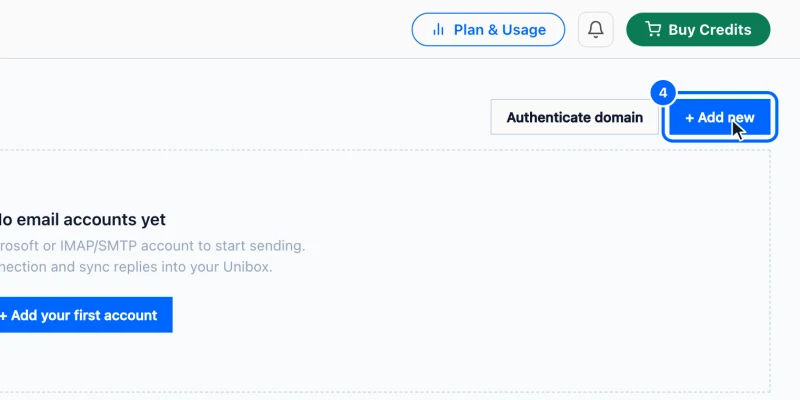
Step 4: Start a new connection
- Click + Add new in the top right.
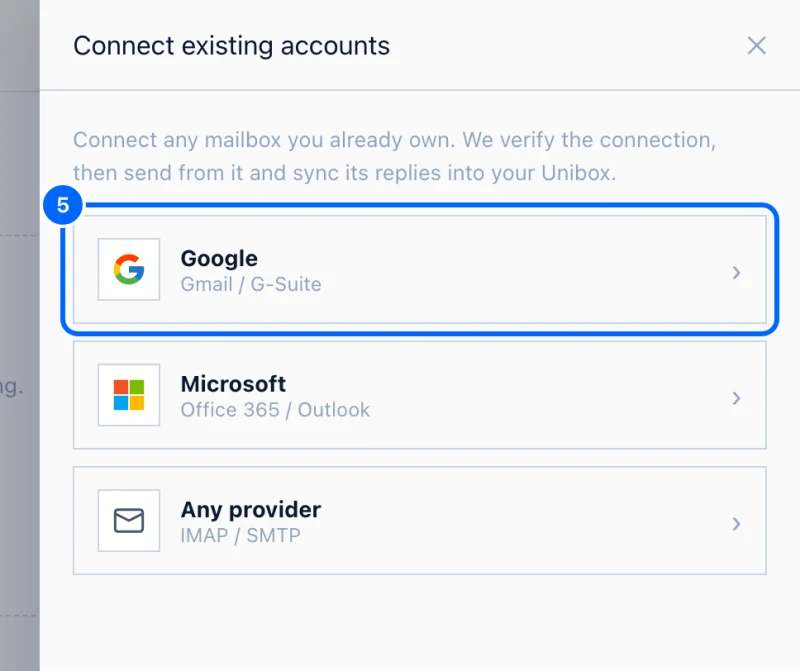
- A panel opens on the right with the kinds of account you can connect.
Step 5: Choose Google
- Click Google.
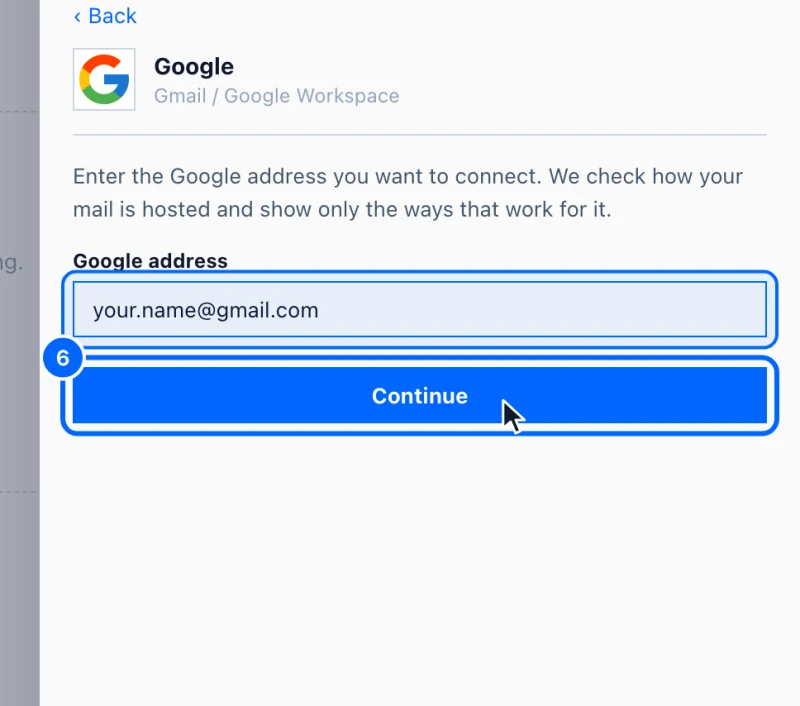
Step 6: Enter your Gmail address
- Type your Gmail address under Google address.
- Click Continue.
- Because it is a Gmail address, the panel shows the app password form with your address filled in.
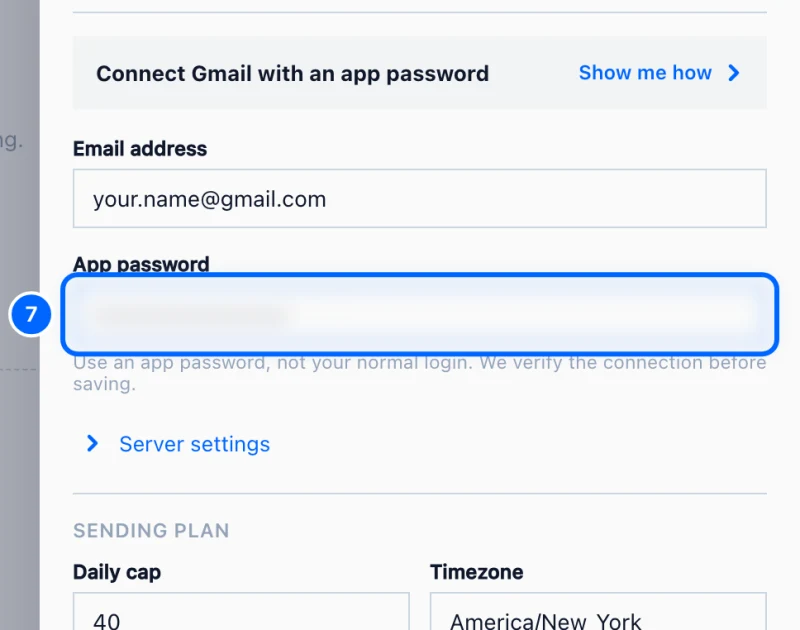
Step 7: Paste the app password
- Paste the 16-character password from Google into App password.
- Use the app password, not the password you sign in to Gmail with.
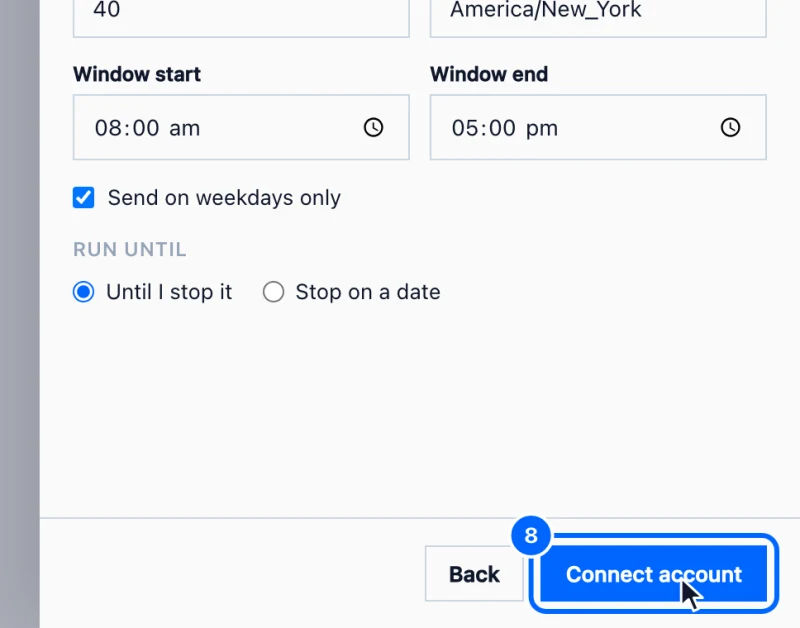
Step 8: Connect the account
- Click Connect account at the bottom of the panel.
- SpamCipher checks that it can sign in to your inbox. When it can, the panel closes and your Gmail account appears on the Email Accounts page.
Troubleshooting
The Connect account button stays grey
Check that the email address is complete and that you pasted the whole app password. The button turns blue when both are filled in.
It says it could not sign in
Make sure you pasted an app password and not your normal Gmail password, and that 2-Step Verification is still on. If it still fails, delete the app password in Google, create a new one and try again.
I can't find App passwords in my Google account
App passwords only appear once 2-Step Verification is on. Turn it on first. If your Google account is managed by your company, your administrator may have turned app passwords off.
My address does not end in @gmail.com
If your email uses your own domain through Google, follow How to connect a Google Workspace account instead.
Did this answer your question?