

Of the three authentication protocols every sender needs, DKIM is the one that does the actual cryptography, and the one whose DKIM setup most teams complete without understanding what they configured. That gap bites later: a selector nobody can find, a signature that breaks in forwarding chains it should have survived, an ESP signing with its own domain so none of it counts for DMARC. This guide is the standalone DKIM reference: how signing works, every tag in the signature header decoded, selectors explained properly, exact setup steps for Google Workspace, Microsoft 365 and ESP-sent mail, and the verification and rotation practice that keeps it healthy. We are SpamCipher: we set up SPF, DKIM and DMARC from a guided dialog and run inbox placement tests on our own seed mailboxes, and all of it starts with mail that proves where it came from.
What DKIM setup actually gives you
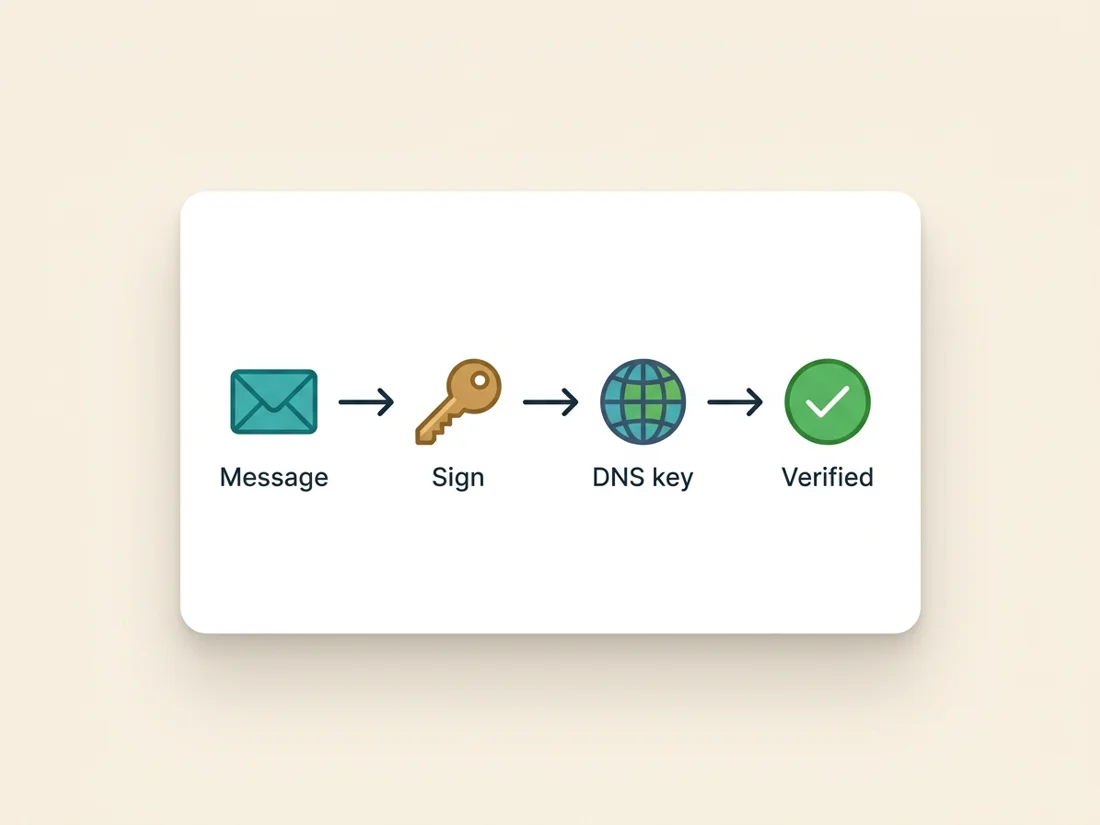
DKIM (DomainKeys Identified Mail) attaches a cryptographic signature to every message you send. Your mail server holds a private key; the matching public key sits in your DNS where any receiver can fetch it. At send time, the server computes a hash over the message body and a chosen set of headers, signs that hash with the private key, and stamps the result into a DKIM-Signature header. At receive time, Gmail or Outlook fetches your public key from DNS, recomputes the same hashes, and checks that the signature matches. If it does, two things are proven at once: the message really was authorized by the domain in the signature, and the signed content was not altered in transit.
The comparison with SPF explains why you need both. SPF authorizes sending IP addresses, which means it breaks the moment a message is forwarded: the forwarding server's IP is not on your list, so SPF fails through no fault of yours. DKIM travels inside the message. A forwarded message carries its signature with it, and as long as the forwarder does not modify the signed content, the signature still verifies at the final destination. That resilience is why DKIM, not SPF, is the authentication workhorse for real-world mail flows, and why Google and Yahoo's bulk-sender rules treat a valid, aligned DKIM signature as the strongest identity signal you can present. Where DKIM sits in the full stack alongside SPF, DMARC and BIMI is covered in our complete email authentication guide; this article goes deep on the one protocol.
One boundary to set early: DKIM proves origin and integrity, not virtue. Spammers sign their mail too, from domains they own. The value of your signature is that it lets receivers attribute mail to your domain with certainty, so the reputation you earn is credited to you and the mail that fails to prove itself can be judged accordingly. DKIM is the identity layer; DMARC, covered below, is the enforcement layer that turns identity into anti-spoofing protection.
The DKIM-Signature header, tag by tag
Every signed message carries a header like this one, and being able to read it is the difference between debugging DKIM and guessing at it:
DKIM-Signature: v=1; a=rsa-sha256; c=relaxed/relaxed;
        d=yourdomain.com; s=google;
        h=from:to:subject:date:message-id:mime-version;
        bh=g3zLYH4xKxcPrHOD18z9YfpQcnk/GaJedfustWU5uGs=;
        b=AuUoFEfDxTDkHlLXSZEpZj79LICEps6eda7W3deTVFOk4yAUoqOB
          4nujc7YopdG5dWLSdNg6xNAZpOPr+kHxt1IrE+NahM6L/LbvaHut
          KVdkLLkpVaVVQPzeRDI009SO2Il5Lu7rDNH6mZckBdrIx0orEtZV
          4bmp/YzhwvcubU4=
Each tag has a job:
v=1is the DKIM version; it is always 1.a=rsa-sha256names the signing algorithm. RSA with SHA-256 is the standard; if you ever seersa-sha1, the setup is outdated and many receivers will discount or reject it. The newered25519-sha256exists but receiver support is still partial, so RSA remains the safe default.c=relaxed/relaxedsets canonicalization: how much whitespace and header-formatting tolerance the verifier allows for headers and body respectively.relaxed/relaxedsurvives the harmless reformatting that mail servers routinely apply;simplemeans byte-exact and breaks constantly. You want relaxed.d=yourdomain.comis the signing domain, the identity the whole signature vouches for. This is the single most important tag for deliverability, because DMARC compares it against your From address (the alignment section below).s=googleis the selector, the label that tells the receiver which of your published keys to fetch. Selectors get their own section next.h=from:to:subject:date...lists which headers were included in the signature. From must always be signed (the spec requires it); Subject, Date and Message-ID should be. Headers not on this list can be altered in transit without breaking the signature, which is exactly why the important ones belong on it.bh=is the hash of the message body at signing time. If even one byte of the body changes downstream, the recomputed hash will not match this value and verification fails with a body-hash error. This is the tag that mailing-list footers and corporate gateways break, as the failures section shows.b=is the signature itself: the header hash encrypted with your private key. This is the value the public key in DNS decrypts and checks.
You can see this header on any message you have received: in Gmail, open the message, choose Show original, and the full header block appears alongside a summary verdict. Our guide to reading email headers walks through that whole view; here we only need the DKIM parts.
Selectors: the part everyone finds confusing
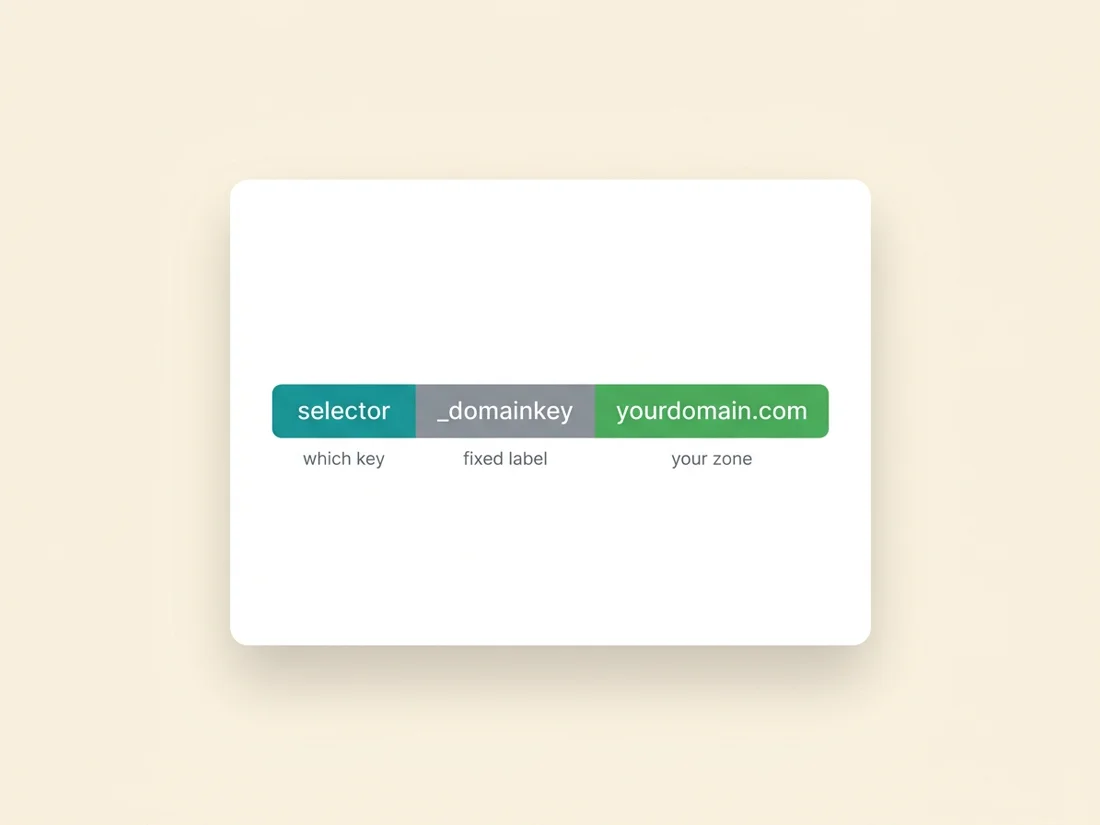
A selector is nothing more than a name for a key. The receiver takes the s= value and the d= value from the signature and asks DNS for a TXT record at a fixed address built from both:
{selector}._domainkey.{domain}

s=google, d=yourdomain.com
→ DNS lookup: google._domainkey.yourdomain.com
That is the entire mechanism. The _domainkey label is fixed by the standard; the selector is whatever the signer chose. Google Workspace uses google by default, Microsoft 365 uses selector1 and selector2, and ESPs invent their own (k1, s1, mandrill, everlytickey1, and so on).
Selectors exist because a domain almost never has exactly one signing system. Your Google Workspace signs the mail your team writes; your ESP signs your campaigns; your billing system signs invoices. Each signer holds its own private key and publishes its own public key under its own selector, and none of them need to coordinate or share secrets. Selectors are also what make key rotation possible without downtime: publish a new key under a new selector, switch signing to it, and retire the old record after mail in transit has cleared.
Finding a selector when you do not know it comes up constantly, because DNS gives you no way to list the selectors a domain has published; you can only query a name you already know. The reliable method: send yourself a message through the system in question, open the headers, and read the s= tag out of the DKIM-Signature. Do that once per sending system and you have the complete selector inventory for your domain. The shortcut method: query the common defaults directly, since most infrastructure uses predictable names:
dig TXT google._domainkey.yourdomain.com +short
dig TXT selector1._domainkey.yourdomain.com +short
dig TXT k1._domainkey.yourdomain.com +short
A record that exists comes back starting with v=DKIM1; followed by the public key. Keep the inventory written down: stale selectors from ESPs you left years ago are a genuine hygiene problem, covered in the failures section.
DKIM setup for Google Workspace, Microsoft 365, and ESPs
The shape of every DKIM setup is the same: generate a key pair, publish the public half in DNS, turn on signing. The details differ by platform, so here are the three configurations that cover most senders.
Google Workspace. In the Admin console, go to Apps, then Google Workspace, then Gmail, then Authenticate email. Select your domain and click Generate new record; choose the 2048-bit key length (the default, and the right choice). Google shows you a TXT record to publish:
Host:  google._domainkey.yourdomain.com
Type:  TXT
Value: v=DKIM1; k=rsa; p=MIIBIjANBgkqhkiG9w0BAQEFAAOCAQ8A
       MIIBCgKCAQEA0Fh8... (long base64 public key)
Publish that record at your DNS host, wait for it to resolve (minutes at most hosts, up to 48 hours in the worst case), then return to the same Admin console page and click Start authentication. This second click is the step teams forget: until you press it, the key is published but Google is not signing with it, and mail continues to go out signed only by a Google shared domain. Verify by sending yourself a message and checking that the signature shows d=yourdomain.com with s=google.
Microsoft 365. Microsoft structures it differently: instead of publishing the key itself, you publish two CNAME records that point into Microsoft's DNS, where they host and rotate the keys for you:
Host:  selector1._domainkey.yourdomain.com
Type:  CNAME
Value: selector1-yourdomain-com._domainkey.yourtenant.onmicrosoft.com

Host:  selector2._domainkey.yourdomain.com
Type:  CNAME
Value: selector2-yourdomain-com._domainkey.yourtenant.onmicrosoft.com
The exact values (your domain with dots replaced by hyphens, plus your tenant's onmicrosoft.com name) are shown in the Defender portal under Email authentication settings, DKIM; copy them rather than constructing them by hand. Publish both CNAMEs, then enable signing for the domain on the same page. Two selectors exist so Microsoft can rotate keys behind the CNAMEs with zero action from you, which is a genuinely good design: the delegation costs you nothing and buys you automatic rotation.
ESPs and sending platforms. Almost every ESP follows the Microsoft pattern: the platform generates and holds the keys, and you delegate a selector to them by CNAME. A typical setup screen asks you to publish something like:
Host:  k1._domainkey.yourdomain.com
Type:  CNAME
Value: dkim.espplatform.com
followed by a Verify button that checks the record resolves. The one thing to confirm on any ESP, and it is the thing that actually matters: after verification, the signature on your campaigns must show d=yourdomain.com, not d=espplatform.com. Plenty of platforms will happily send your mail signed with their own shared domain if you skip the custom-domain step, and that signature, valid as it is, does nothing for your DMARC. The alignment section explains why. In SpamCipher, SPF, DKIM and DMARC are set up from a guided dialog, and domain health checks confirm DKIM and alignment and alert you if authentication breaks.
Key length and the split-TXT problem
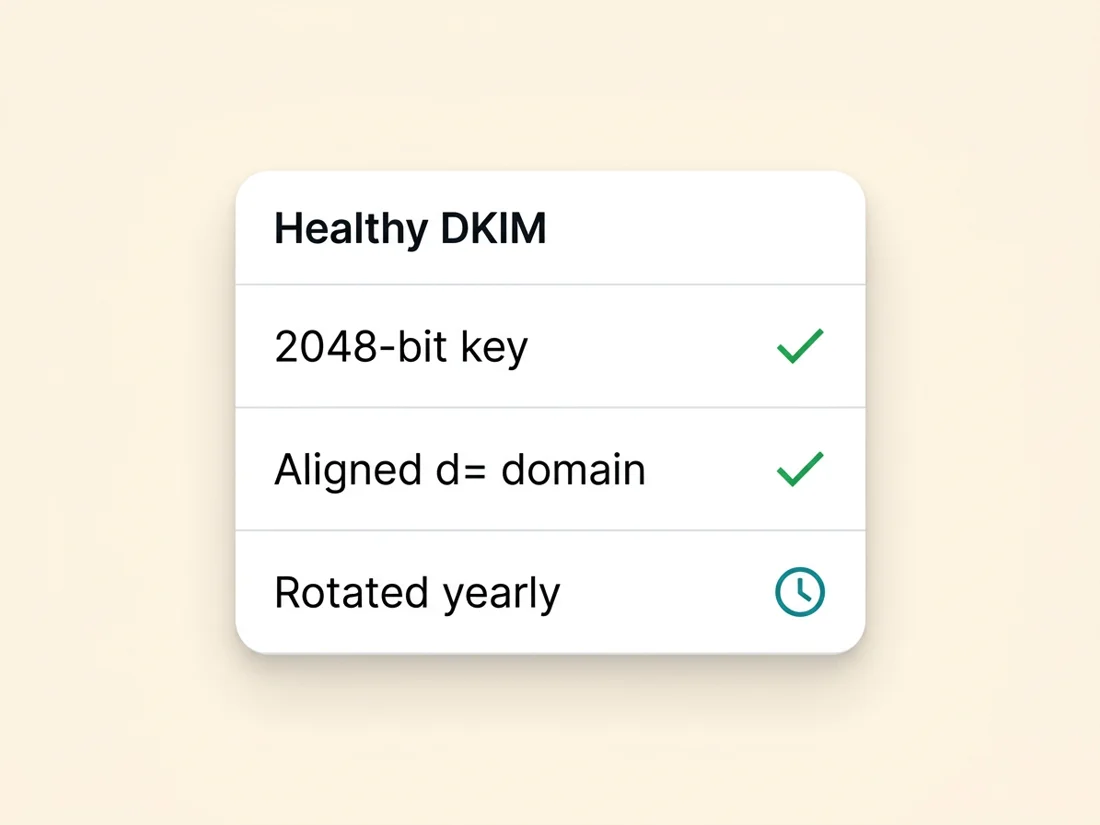
DKIM keys are RSA key pairs, and the length question has a settled answer: use 2048-bit keys. 1024-bit keys are within plausible reach of well-funded factoring attacks, and a factored DKIM key is catastrophic in slow motion: whoever holds the private key can sign mail as your domain that passes DKIM and aligns for DMARC, indistinguishable from your own. Google, Microsoft and every serious ESP default to 2048 today; the only reason 1024 persists is old setups that were never revisited. If yours is one, rotate it (the practice below makes that painless).
The wrinkle 2048-bit keys introduce is mechanical: DNS limits a single TXT string to 255 characters, and a 2048-bit public key is longer than that. The standard handles this by letting one TXT record contain multiple quoted strings, which verifiers concatenate before parsing:
google._domainkey.yourdomain.com. IN TXT (
  "v=DKIM1; k=rsa; p=MIIBIjANBgkqhkiG9w0BAQEFAAOCAQ8AMIIBCgKC..."
  "...rest of the base64 key..." )
Good DNS hosts split long values automatically when you paste them; a few older panels make you split by hand, and a few broken ones truncate silently. The failure mode to watch for is a key that was pasted whole and cut off at 255 characters: the record exists, looks plausible at a glance, and fails every verification with a bad-key error. After publishing any 2048-bit key, confirm the full record resolves intact:
dig TXT google._domainkey.yourdomain.com +shortand check that the p= value ends with the same characters the console showed you. Thirty seconds of checking here saves the multi-day variety of debugging where the console says enabled and the mail says otherwise.
Alignment: when DKIM counts for DMARC
A DKIM signature can be completely valid and still do nothing for you. DMARC does not ask "does this message carry a valid signature?"; it asks "does this message carry a valid signature whose d= domain matches the From address the recipient sees?" That match is called alignment, and it is the detail that separates a working authentication stack from a decorative one.
Alignment comes in two modes. Relaxed (the default) requires the organizational domains to match: a signature with d=mail.yourdomain.com aligns with a From of you@yourdomain.com, because both roll up to yourdomain.com. Strict requires an exact match: d=mail.yourdomain.com no longer aligns with yourdomain.com. Strict mode is set with adkim=s in your DMARC record, and unless you have a specific policy reason, relaxed is the correct choice; strict mostly manufactures failures out of legitimate subdomain signing.
The classic misconfiguration, and the single most common alignment failure in the wild: your From says you@yourdomain.com, but your ESP signs with d=espplatform.com because the custom signing domain was never set up. DKIM passes (the signature is genuinely valid, for the ESP's domain), DMARC sees no aligned identifier, and if SPF does not happen to align either, the message fails DMARC outright. Under a p=quarantine or p=reject policy, your own campaigns start landing in spam or vanishing, with a "passing" DKIM check the whole time. This exact signature, valid-but-unaligned, is the first thing to look for when your DMARC reports show failures on mail you know you sent.
Alignment is also the answer to "does DKIM stop spoofing?" By itself, no: a spoofer puts your domain in the From, signs with their own domain, and DKIM verifies their signature happily. It is DMARC's alignment requirement that closes the loop, by demanding the verified identity match the visible one, and your enforcement policy that makes failure consequential. And beyond enforcement, aligned DKIM is the gateway to the trust tier above it: BIMI and the Gmail blue checkmark require DMARC at enforcement, which requires aligned DKIM underneath. Watching alignment across every sending source is what our DMARC monitoring does: it reads your aggregate and forensic reports, lists every source sending in your name and alerts you on authentication failures, so misaligned sources surface early instead of after a quarter of silently spam-foldered campaigns.
Verifying your setup end to end
Console toggles and DNS records are claims; the only proof is a real message evaluated by a real receiver. The two-minute verification, run after every DKIM change:
- Send a live message from the system you just configured to a Gmail address you control (Gmail because its header verdicts are the clearest and its standards the strictest that matter).
- Open Show original. The summary block at the top gives one-line verdicts for SPF, DKIM and DMARC. You want to see:
DKIM: 'PASS' with domain yourdomain.com. The domain in that sentence matters as much as the PASS; a pass with the ESP's domain is the alignment trap from the previous section. - Read the Authentication-Results header for the full detail:
dkim=pass header.d=yourdomain.com header.s=googleconfirms which key signed and which selector was used. Multipledkim=entries are normal when multiple systems signed the same message; at least one must carry your domain inheader.d=. - Confirm DMARC agrees:
dmarc=passin the same header means alignment held. Adkim=passnext to admarc=failis the valid-but-unaligned signature, and the fix is the signing domain, not the key.
Repeat once per sending system: workspace mail, campaigns, transactional, billing. Each has its own selector, its own key, and its own opportunity to be misconfigured independently of the others. For ongoing assurance rather than point-in-time checks, DMARC aggregate reports are the instrument: they show DKIM pass rates and alignment per source IP across all your mail, including the sources you forgot you had.
Common failures and how to fix them
DKIM failures cluster into a small set of patterns, and the header verdicts tell you which one you have.
Body hash mismatch (bh= failure). The verifier reports the body hash does not match, meaning the content changed after signing. The usual culprits are outbound gateways and security appliances that append a legal footer or rewrite links after the signing step, and mailing-list software that adds its own footer. The fix is ordering: signing must be the last thing that touches the body, so either move signing to the gateway itself or configure the footer to be applied before signing. If a third-party list is doing it, that is what ARC exists for on the receiver side, and not something you can fix from yours.
Key not found. The signature names a selector that does not resolve. Either the DNS record was never published, was published under a typo (google._domainkey.yourdomain.com.yourdomain.com from pasting a fully-qualified name into a host field that auto-appends the domain is a classic), or propagation has not reached the receiver yet. dig the exact name from the s= and d= tags and fix what you find.
Bad key or verification failure. The record resolves but the key is malformed: truncated at 255 characters (the split-TXT problem above), whitespace or line breaks introduced into the base64 by a DNS panel, or stray quotes pasted into the value. Re-paste cleanly and confirm with dig that the resolved p= matches the console's value end to end.
Signing silently off. Everything is published, nothing is signing: the Start authentication click was skipped in Google, the enable toggle never flipped in the Defender portal, or the ESP's custom domain sits unverified. No error appears anywhere, because unsigned mail is not an error; you find it by checking a live message's headers, which is why the verification habit exists.
Partial coverage. The mail you tested passes; a stream you did not test goes out unsigned or unaligned. Invoicing systems, support desks, internal tools sending as your domain: every stream needs its own DKIM configuration, and DMARC aggregate reports are how you find the ones you missed.
Stale selectors. Old keys from departed ESPs stay published forever unless someone removes them. A stale record is mostly inert, but it is attack surface (if that provider's keys were ever compromised, mail signed with them still verifies as you) and it pollutes every audit. When you leave a provider, deleting their selector record is part of leaving.
Which brings us to rotation, the practice that keeps keys from aging into liabilities: generate a new key under a new selector, publish it, switch signing over, and delete the old record after a week has cleared mail in transit. Annually is the standard cadence for keys you hold yourself; CNAME-delegated setups (Microsoft 365, most ESPs) rotate behind the delegation automatically, which is a real argument for the CNAME pattern. Rotation is also your incident response: if a private key is ever exposed, the same procedure, executed immediately, revokes it.
DKIM earns its keep quietly. Configured properly, it is the identity that survives forwarding, the signal that lets your domain accumulate reputation you own, and the foundation alignment builds on; for senders running B2B outreach programs where every campaign's placement is revenue, it is not optional plumbing but the first layer of the delivery system. That system, end to end (signing, alignment, warm-up, placement measurement), runs in SpamCipher, an AI-powered sales engagement platform, B2B lead intelligence database, and email deliverability and security suite in one product. Sign your mail, align your domains, and your placement tests have something to stand on.
Signed, aligned, and verified before you send
SpamCipher sets up DKIM for your sending domains from a guided dialog, checks DKIM and alignment as part of domain health monitoring, and reads your DMARC reports for every source sending in your name, alongside sending, warm-up and inbox placement tests.
Set up authenticated sending