

Every sender wonders what Gmail really thinks of them. Gmail Postmaster Tools is the closest thing to an answer: Google's own free telemetry on how its filters see your domain, straight from the machine that decides where your mail lands. We are SpamCipher, an AI-powered sales engagement platform, B2B lead intelligence database, and email deliverability and security suite in one product, with unlimited email sending on SpamCipher ONE (every mailbox kept inside its own daily cap) and sequences for automated cold email; our reputation monitoring shows Postmaster data next to seed inbox results and blacklist status, so we read these charts daily. This guide covers the exact setup, every dashboard with the action each state demands, the diagnosis patterns that turn charts into decisions, and the tool's honest limits, because most senders either never set the tool up or stare at charts they cannot read, wasting the one first-party signal Google gives away for free.
What Gmail Postmaster Tools is (and is not)
Postmaster Tools is a free dashboard at postmaster.google.com where Google reports, per sending domain, the aggregate signals its filtering systems compute about you: spam complaint rate, domain and IP reputation, authentication success, TLS coverage, and delivery errors. It exists because Google would rather senders fix themselves than flood support channels, and since the 2024 bulk-sender rules it also carries a compliance status view that tells you outright whether you meet the requirements. The data is first-party in the strongest sense: it is not a vendor's estimate of your reputation, it is the actual internal verdict, summarized.
That distinction matters more than it sounds. Third-party reputation scores work by sampling public signals, probing blocklists, and modeling what a filter probably concluded; they are educated guesses about a system they cannot see inside. Postmaster is the system reporting on itself. When your domain reputation reads Medium, that is not an estimate that Gmail might be treating you cautiously; it is Gmail stating that it is. The trade-off is scope: the verdict is real but coarse, delivered as daily aggregates with no explanation of which messages or recipients drove it. You get the judge's ruling without the court transcript, which is exactly why the diagnosis patterns later in this guide lean on your own sending logs to fill in the missing half.
What it is not: a campaign analytics tool. There is no per-message or per-campaign view, no open or click data, no inbox-versus-Promotions placement verdict, and small senders often see empty charts because Google only renders data above a volume threshold. Treat it as the domain-level instrument panel that sits alongside, not instead of, campaign-level measurement, a division of labor this guide returns to at the end.
Setting up Gmail Postmaster Tools
Setup takes about ten minutes, most of it waiting for DNS.
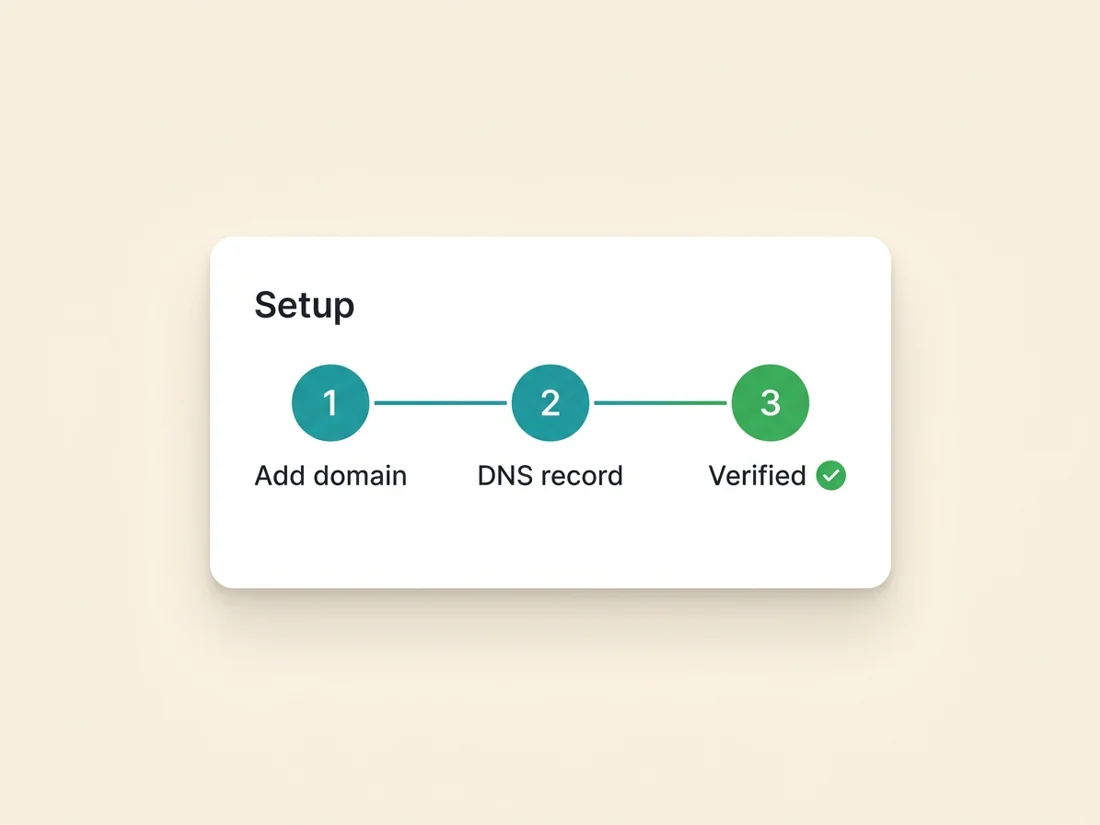
- Step 1: add your domain. Sign in at postmaster.google.com with any Google account your team controls, click the plus button, and enter your sending domain. Add every domain you send from: if outbound runs on separate sending domains (as it should), each one gets its own entry, because reputation is tracked per domain.
- Step 2: prove ownership with a DNS record. Google issues a TXT record (or a CNAME alternative) to publish at your domain. Add it in your DNS host, wait for propagation (minutes to a few hours), and click verify. If you have already verified the domain in Google Search Console with the same account, verification can carry over.
- Step 3: share access. Once verified, add teammates by email so the marketing and deliverability owners see the same charts. Access is per-user, so nobody has to share credentials.
One decision trips people up: which domain, exactly, to add. Google attributes traffic to the authenticated domain on the message, meaning the DKIM signing domain and the SPF return-path domain, not whatever appears in the From line cosmetically. If you sign as mail.yourcompany.com, add that subdomain; if you sign at the organizational domain, add that. When in doubt, add both the organizational domain and the sending subdomains: Postmaster lets you verify as many properties as you like, subdomain data rolls up into the parent view, and having each level verified lets you tell a subdomain-specific problem apart from a domain-wide one. There is no penalty for adding a domain that turns out to be quiet.
After verification, expect the charts to stay empty for a few days while data accumulates, and note that history only accrues from setup forward for some views, which is itself an argument for setting the tool up long before you think you need it.
Every dashboard, decoded
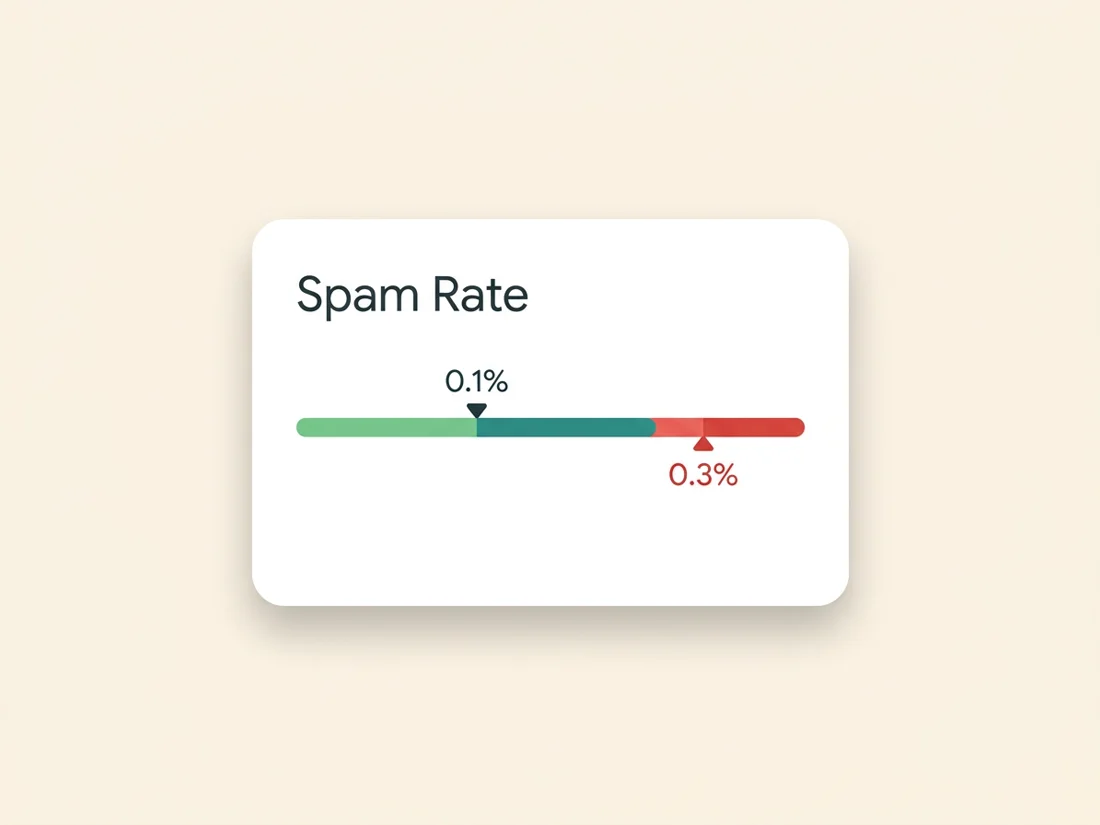
Spam rate. The percentage of your delivered mail that Gmail users marked as spam, plotted daily. This is the single most consequential chart in the tool because Google enforces hard thresholds: stay under 0.1% as your operating target, and treat 0.3% as the enforcement line beyond which bulk mail gets filtered aggressively under the sender rules. A single bad day is survivable; a sustained rate above 0.3% is an emergency that demands you stop, find the complaining segment, and fix consent, frequency, or list quality before resuming volume. Spikes almost always align with a specific send, so match dates against your campaign log.
Two mechanics of this chart deserve attention. First, the denominator: the rate is complaints divided by mail delivered to the inbox, not mail sent. If Gmail is already routing most of your volume to spam, the folder itself has no report-spam consequence, so your measured rate can look deceptively calm while placement collapses; a low spam rate on a Low-reputation domain is not good news. Second, the source: only mail authenticated with your domain counts toward your chart, which is one more reason DKIM alignment is non-negotiable. Read the spam rate together with the reputation chart below it, never alone, and remember that the days with no data point simply fell below the volume floor rather than measuring zero complaints.
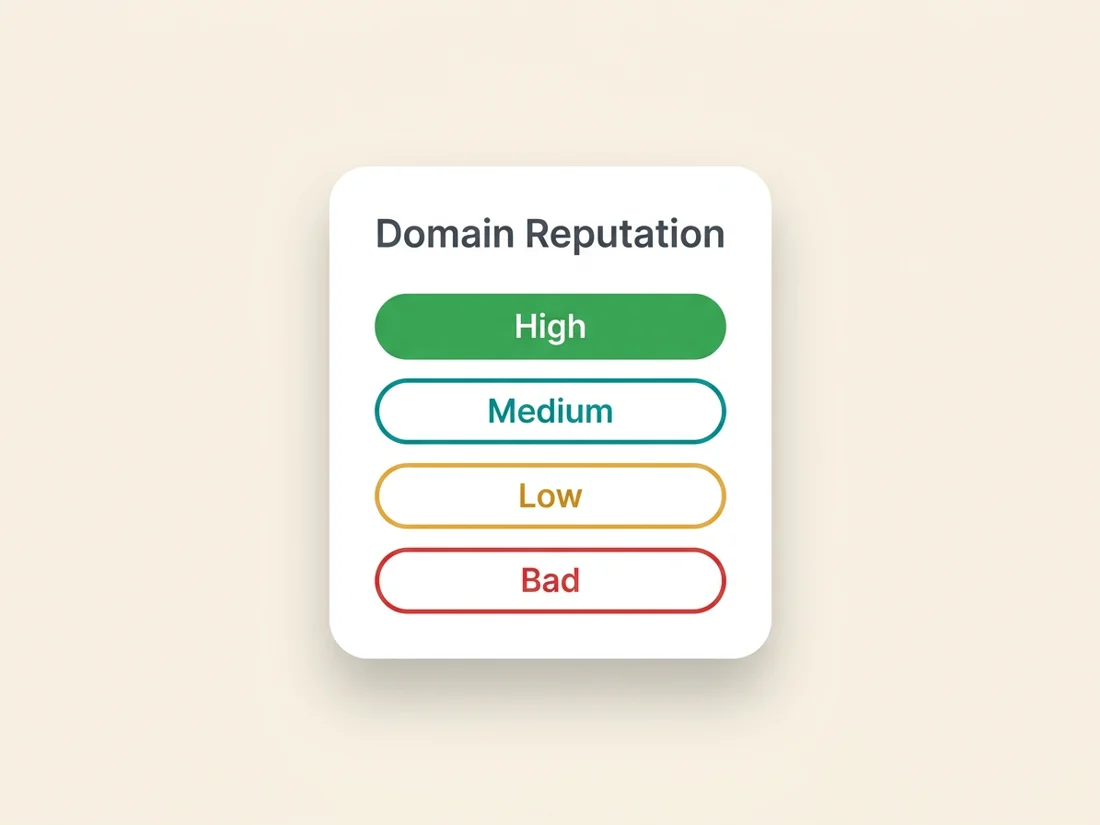
Domain reputation and IP reputation. Two charts, each showing one of four tiers: High, Medium, Low, or Bad. High means your mail generally reaches inboxes; Medium means mixed treatment; Low means most mail is filtered; Bad means near-total spam foldering. Domain reputation is the one to obsess over: it follows your domain everywhere, feeds on your long-term history of complaints, traps, and engagement, and recovers slowly, exactly the ledger described in our sender reputation guide. IP reputation matters mostly for dedicated-IP senders; on shared pools it reflects your provider's neighborhood more than you. A domain sliding from High to Medium is your earliest actionable warning, usually preceding any visible open-rate change.
Feedback loop. Populated mainly for very high-volume senders using the Gmail feedback-loop header: it breaks complaint spikes down by campaign identifier so large mailers can find which stream misbehaved. If it is empty for you, that is normal below serious scale.
Authentication. The percentage of your mail passing SPF, DKIM, and DMARC over time. Healthy senders sit at effectively 100% on all three lines. A dip is never cosmetic: it means some stream of your mail is failing checks, typically after a DNS edit, an ESP migration, or a new tool sending as your domain without alignment. Cross-reference the failing mechanism against your authentication setup and fix the record or the sender, because sustained failures depress everything else on the page.
Encryption. The share of your mail delivered over TLS. Modern infrastructure should show ~100% inbound and outbound; anything less points at a legacy relay in your path worth retiring.
Delivery errors. The percentage of connection attempts Gmail rejected or temp-failed, with error categories. Spikes here mean Gmail is actively refusing or deferring your traffic: rate limiting when you ramped too fast, or policy blocks when reputation slid. The error strings map to the same taxonomy as bounce codes, decoded in our SMTP error codes guide, and a rising errors chart plus a falling reputation chart is Gmail telling you to cut volume now rather than after the blacklisting.
Compliance status. The post-2024 addition: a pass/fail style summary of the bulk-sender requirements (authentication, one-click unsubscribe, spam-rate ceiling). Any red state here is your literal to-do list from Google, and the requirements themselves are covered in Gmail's filtering changes.
The diagnosis patterns
Individual charts inform; combinations diagnose. Four patterns cover most real incidents.
- Spam rate up + domain reputation sliding: a list or consent problem. Some segment you recently mailed did not want the mail. Find the send that started the spike, quarantine that segment, and re-examine how those addresses were acquired.
- Authentication dipping, everything else stable (so far): an infrastructure change broke a record. Check recent DNS edits, new sending tools, and ESP changes; fix before the reputation charts notice.
- Delivery errors spiking after a volume jump: you out-ran your warm-up. Gmail throttles first and filters second, so drop back to the previous volume tier and ramp more slowly.
- Everything degrading at once: a reputation event, often a spam-trap hit or a compromised mailbox blasting through your domain. Audit for compromise, check the blocklists, and treat it as the emergency it is.
The common thread: Postmaster tells you that and roughly why; your own sending logs tell you which send. Keep a campaign log with dates and segments, because every diagnosis above starts by lining the two up.
Using Gmail Postmaster Tools as a cold email sender
Cold outreach changes how you use the tool in three practical ways. First, you are running many small domains instead of one big one. Sound cold email infrastructure spreads volume across secondary sending domains, and each of those needs its own Postmaster entry, verified on day one of the domain's life so history exists before the first campaign. The catch is the volume floor: a healthy cold email domain sending 30 to 50 messages a day per mailbox often sits below the threshold where Google draws charts at all, so your newest and most fragile domains are precisely the ones Postmaster stays silent about. That silence is not safety, and it is the strongest argument for pairing the tool with seed-based placement measurement, which works at any volume because you control the receiving mailboxes.
Second, the charts are your warm-up referee. A ramp schedule is a hypothesis about how fast Gmail will extend trust; delivery errors and domain reputation are the verdict. If reputation holds at High while errors stay flat, the ramp can continue. If errors tick up or the tier slips, the schedule was too aggressive for that domain's age and history, and the correct response is to hold or step back a tier rather than push through, because throttling ignored becomes filtering next.
Third, the spam rate chart is your list-quality invoice. Cold recipients never opted in, so the margin for error is thinner than in newsletter land: a prospect list with stale titles and wrong-fit companies converts directly into report-spam clicks, and the 0.3% line arrives fast at outreach volumes. Verification before sending, tight targeting, and an easy opt-out are what keep the chart flat. This is the loop our inbox placement product and reputation monitoring close together: seed tests measure where each campaign lands, Gmail Postmaster Tools data appears per monitored domain when connected, and the Deliverability Agent can throttle or pause a mailbox when complaints spike, so the operator sees one view instead of juggling a dozen Google properties manually.
The honest limits
Respect what the tool cannot do, or it will quietly mislead you.
- Volume gating: Google only draws charts above an undisclosed daily-volume threshold, commonly described as a few hundred messages a day to Gmail. Small and new senders see blank dashboards, which means nothing is wrong; it means you are below the reporting line.
- Lag: data trails by a day or more, so it is a trend instrument, not a live alarm.
- Gmail only: it says nothing about Outlook, Yahoo, corporate gateways, or anyone else.
- Aggregate only: no campaign, message, or recipient granularity.
- No placement verdict: reputation tiers correlate with placement, but the tool never tells you whether a given campaign landed in the inbox, the Promotions tab, or spam. Only seed-based placement testing answers that, per provider, per campaign, which is why serious senders run both: Postmaster for Gmail's opinion of the domain, seeds for the ground truth of where mail actually lands.
A monitoring cadence that sticks
The tool only pays if someone actually looks, so wire it into a routine. Weekly: a two-minute glance at spam rate, domain reputation, and authentication for every sending domain; flat and green means done. Before and after anything risky: a new segment, a volume step, a launch, an ESP change; screenshot the baseline, compare after. Alarm states that interrupt your week: spam rate above 0.3%, any reputation tier drop, authentication below ~99%, or a delivery-error spike; each maps to a diagnosis pattern above. And log what you see: a dated note beside your campaign log turns next quarter's mystery into this quarter's documented incident.
Wired into that cadence, Postmaster Tools becomes the Gmail half of a complete instrument panel. The other half is the measurement Google will not give you: seed accounts reporting actual inbox-versus-spam placement by provider, validation keeping the list from generating the complaints in the first place, and an agent that throttles or pauses a mailbox when complaints spike. SpamCipher runs that full panel in one platform: we read Gmail's telemetry like everyone can, and we measure what Gmail never shows, which no dashboard alone will do for you.
See what Postmaster can't show you
Pair Google's domain telemetry with seed-measured placement by provider, validation that prevents the complaints, and an agent that throttles a mailbox when complaints spike. Unlimited sending on ONE (per-mailbox caps), with placement you measure before launch.
Run a placement test